Simulations#
Once the input file is uploaded in the STORAGE list, it is possible to start the simulation. The analyses can be initiated in the menu LIST SIMULATIONS.
In the Simulation menu you can:
-
execute the analysis
-
monitor the analysis
-
interrupt the analysis
-
restart the analysis
Here are also suggested hints for setting the computational capacity tailored for your simulation and how to estimate the simulation time.
Execute a simulation#
In order to run the simulation, start by Add one as shown in the following picture.

A new page will appear. This page is divided into two different parts:
-
The first part requires you to insert the information about the vCPU, RAM and instance type you want to use
-
Each virtual CPU (vCPU) is implemented as a single hardware hyper-thread except for the highcore and the hypercore instances where the CPU is implemented as a physical vCORE. Not all the software available can benefit of the hyper-thread architecture.
-
RAM represents the RAM memory allocated and made available for the simulation. The selected RAM is allocated per each vCPU defined before. For highcore and the hypercore selections a multi-core instance without hyper-thread is allocated - usefull to take full advantage for some specific software where hyper-thread is not implemented. For basegpu selection NVIDIA TESTLA T4 GPUs are allocated proportionally to the vCPU selected. A summary of all choices is reported here:
- standard: this selection allocates a hyper-thread instance with 4GB of RAM for each vCPU selected
- highmem: this selection allocates a hyper-thread instance with 8GB of RAM for each vCPU selected
- highcpu: this selection allocates a hyper-thread instance with 1GB of RAM for each vCPU selected
- highcore: this selection allocates a multi-core only instance with 2GB of RAM for each vCPU (core) selected
- hypercpu: this selection allocates a hyper-thread instance with 1GB of RAM for each premium vCPU selected
- hypercore: this selection allocates a multi-core only instance with 2GB of RAM for each premium vCPU (core) selected
- basegpu: this selection allocates a hyper-thread instance with 8GB of RAM per each vCPU selected and 1 NVIDIA TESLA T4 every 2 vCPU selected
-
REG/SPOT are the two types of machines available to run the analysis. They consist of the same machine types, but while REG are exclusively used for the analysis, SPOT machines can be restarted at any time during the calculation. After the machine reboots, the simulation restart from the last saved restart file. The SPOT machine restart probability is generally affected by:
- The number of SPOT simulations launched: about 30% of simulations are affected by at least one restart
- The total time spent with SPOT machines on the platform: usually a restart occurs every 10 or more hours of use of this type of machines
- The solver and the number of vCPU allocated to each SPOT machine can modify the above frequencies and probabilities
-
The above info are indicative and different users can experience different behaviours.

- The second part requires you to insert the folder where you want to operate and the software you want to use. In particular you have:
- Folder represents a list of folders available in the storage among which you have to pick the one where you want to operate
- Mesh is a list of folders available in the storage. It is an optional argument that can help users with specific software as explained below:
- OpenFOAM: copy of the polyMesh and triSurface folder from the Mesh storage folder into the Folder selected where the solver is going to operate.
- Script is a list of available solvers you can run on the Folder you selected
The commands can be classified into two types: the first classification regards the mandatory/non mandatory commands, the second regards the advanced parameters and the basic ones. Some parameters may not appear in your account because they must be enabled by administrator. For these parameters Default values are going to be used authomatically by the cloudHPC platform. You can ask our administrator to enable you the advanced parameters by emailing us at info@cfdfeaservice.it.
| Command | Mandatory | Advanced | Default |
|---|---|---|---|
| vCPU | ✅ | - | |
| RAM | ✅ | - | |
| REG | ❌ | ✅ | REG |
| Folder | ✅ | - | |
| Mesh | ❌ | ✅ | - |
| Script | ✅ | - |
Instance hard disk#
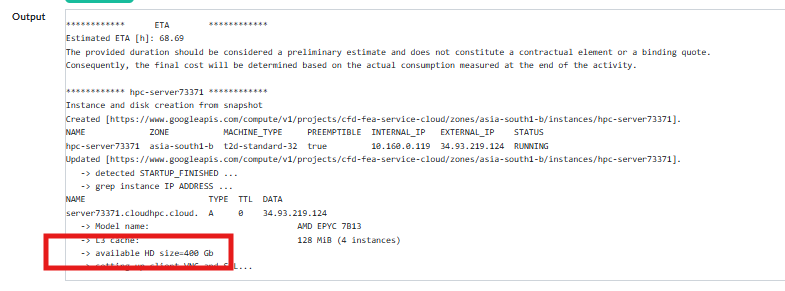
Every time you execute a simulation, a specific hard disk is allocated to actually compute the simulation. Currently most of the times this hard disk size is 400 GB. There are few exceptions though:
- 4 vCPU machines (every type of RAM) are provided an hard disk of 200 GB
- highmem/REG machines with at least 16 vCPU are provided an hard disk of 2000 GB
- highmem/SPOT machines with at least 16 vCPU are provided an hard disk of 600 GB
The actual Hard Disk allocation can be verified on the output window as highligted by the following sketch.
Note
For specific needs you can get in touch with the support team that will assist with storage description and expansion
SPOT instance correct setup#
Since SPOT instance my be subjected to restart at any time during the simulation, it's important the user correctly set-up the case in order to avoid losing computing power. Every software requires a peculiar set-up which is demanded to the user. If is importanto to keep in mind the restart is just a probability which mostly depends on the following parameters:
- The number of SPOT simulations launched: about 30% of simulations are affected by at least one restart
- The total time spent with SPOT machines on the platform: usually a restart occurs every 10 or more hours of use of this type of machines
- The solver and the number of vCPU allocated to each SPOT machine can modify the above frequencies and probabilities
More info on this topic can also be found on this webinar:

By default, new account do not have SPOT instances enabled. The reason for this is prevention of misuse of this type of instance. In order to enable SPOT instances on your account fill this form.
FDS#
In order to save restart file with a certain frequency, FDS requires the user to set the DT_RESTART parameter under the DUMP command:
&DUMP DT_RESTART=300.0/
This tells the solver to save a restart file every 300.0 s of simulated time. If in a SPOT instance a reboot occurs, the system automatically looks for restart file produced by FDS and, if present, restart the simulation from those.
Note
Our team is in contact with the NIST - FDS developer. We strongly recommed to use the most recent installed FDS versions to make sure your simulation won't encounter issues or bugs which may alter or affect the results of your simulations.
The user goal is to set-up a DT_RESTART time which allows saving a restart file every 2 to 5 hours. With this frequency it's unluckily your simulation is going to suffer of any slow down due to the restart file writing and, at the same time, in case of restart the amount of simulated time lost is reduced to a minimum.
OpenFOAM#
When running OpenFOAM simulations the restart options are to be configured in the system/controDict file. In particular the following options allow the user to get full control:
startFrom       latestTime; //in case of restart, restart from last saved time step
writeControl    timeStep;   //control timing of writing results
writeInterval   100;        //writing results frequency
purgeWrite      5;      //keeps only the 5 most recent results and cancels older
When using SPOT instances, the user has to impose startFrom latestTime, so that in case of instance reboot, the simulation restarts from the last saved time step. Then it's possible to set the frequency of the saved results by setting the writeInterval option.
Other software and custom-script#
Other software and custom-script are not tested to work properly with SPOT instances and a reboot of your simulation means losing all computed time up to that moment. For this reason, SPOT instances are not made available to all users by default.
Execute a custom-script#
Among other software, it is also possible to execute a custom script in bash or python. In order to do you can use the custom-script command available in the dropdown script selection as in the following image:

This script will authomatically execute any bash script (.sh) or python script (.py) file present in the folder. So you just have to upload the script you want to execute together with the other files required by your study inside a specific folder in your storage.
In order to know more about this feature, please contact our support service via chat.
Execute a static instance#
Beyond simple script, it is possible to execute static instances. These instances are different compared to others because they do not execute any particular software, but they are simply hardware resources made available to the user via remote-desktop or SSH connection.
These particular instances are designed to help the user in two different phases:
- Debugging the set-up of a case before launching the solver.
- Run specific UI installed on cloudHPC via the remote desktop
- Post-Processing the results once the simulation has been completed.
It's important to mention that these instances are static, so no particular script is executed on that.
Note
It's a user duty controlling and stopping them when his activities are completed.
These instances can in fact be stopped using the usual SOFT/HARD stop functionalities. The execution of a static instance works exactly like any other software. You just have to pick any of the scripts with the "-static" suffix in the list.

Specific UI installed#
In order to access one of the software with UI (User Interface) installed on cloudHPC via remote desktop you can follow the tutorial in the following video where a general methodology is highlighted.
The following table instead shows you the most common UI available on the platform and the static instance you have to run in order to access them. For some of the UI the table reports the terminal command to be executed to actually access the UI.
| SOFTWARE | STATIC INSTANCE | HOW TO START |
|---|---|---|
| cfMesh+ | cfMesh+-GUI-static | 🖥️ desktop icon |
| ParaView | any static | 🖥️ desktop icon |
| ElmerFEM v9 | ubuntu-2004-static | 🖥️ desktop icon |
| SALOME 9.8.0 | ubuntu-2004-static | 🖥️ desktop icon |
| SALOME MECA 2022 | ubuntu-2004-static | 🖥️ desktop icon |
| GMSH 4.11.1 | ubuntu-2004-static | 🖥️ desktop icon |
| HELYX-OS v2.4.0 | ubuntu-2004-static | 📟 terminal: /opt/Engys/HELYX-OS/v2.4.0/HELYX-OS.sh |
| SU2 8.2.0 | ubuntu-2404-static | 🖥️ desktop icon |
| baramFlow v25 | ubuntu-2404-static | 🖥️ desktop icon |
| baramMesh v25 | ubuntu-2404-static | 🖥️ desktop icon |
| FDS SMV | any static | 📟 terminal: /opt/FDS/{VERSION}/smvbin/smokeview |
More info and details#
To get more info and details it's possible to see the following youtube video about the official release of the remote desktop where a static instance use has been described.
In order to know more about this feature, please contact our support service via chat.
Soft and Hard stop#
The simulation can be stopped in the SIMULATION list as shown below.

There are two ways to stop the simulation:
Soft Stop#
The soft stop can interrupt the simulation and save the results obtained until that moment. This is suggested when you don’t want to continue the simulation forward because you reached already the needed results or if you want to stop your simulation with the idea of continuing it later.
Hard Stop#
The hard stop kills your simulation without saving any results.

Danger
After a hard stop, the system deletes the results computed by your simulation without any possibility of restoring them.
Restart#
In general to restart a simulation once this has been terminated or stopped with a Soft stop, you just have to enter your 'Simulations' page of the cloudHPC portal and add a new simulation where vCPU, RAM, folder and script exactly match those of the analysis you want to restart. There are some specific differences depending on the software you are currently using for which the following extra hints are to keep into consideration.
Fire Dynamic Simulator#
For FDS simulations it is possible to restart the simulation automatically if your T_END parameter has not been reached yet - in case, just edit the .fds file and increase this parameter. The platform detects the presence of a .restart file produced by a precursor simulation and, in case, restarts the simulation. It's important to monitor the frequency FDS saves restart files using the appropriate parameter in your .fds file:
&DUMP DT_RESTART=300.0 /
OpenFOAM#
The file to modify and substitute is the file controlDict located in the system Folder. This is the one collecting the information for restart. Modify this dictionary so that matches the following parameters:
startTime      latestTime;
endTime        XXX;
where endTime must be greater that the time the simulation is restarting from. This string means that the simulation would restart from the results in the last time folder saved. Note that, if you leave this option as a default in your controlDict file, it allows you to start from 0 or restart from the latest time depending just on the time steps saved for openFoam.
Code ASTER#
The script to modify in local and substitute in the web-app's STORAGE folder is the file .comm. To restart the file you need to add the string:
POURSUITE()
You can find a detailed procedure in this blog post